Rigidbody - Interpolation


Estimation and Prediction
Imagine you’re planning to go out with a friend tomorrow morning. To decide what to wear, you check the weather forecast. It says the temperature will be 10° at 9 AM and 14° at 10 AM. It’ll be a bit chilly in the morning, but the temperature is expected to rise over time. So you’re wondering whether to bring a jacket. Unfortunately, the forecast only covers up to 10 AM. Now you have to make a decision based only on the information available.
Here’s what we know:
9 AM: 10°10 AM: 14°
So, what would the temperature be at 9:30 AM?
We could estimate it to be around 12°. This would be fairly accurate.
Now, what about the temperature at 11 AM?
Based on the available data, the temperature rose by 4° between 9 AM and 10 AM. If we assume the same trend continues, we might estimate 11 AM to be around 18°.
Here’s a question:
Between the estimated temperature at 9:30 AM and 11 AM, which one do you think is more accurate?
Interpolation and Extrapolation
You probably thought the 9:30 AM estimate would be more accurate.
But why did we come to that conclusion?
The reason is that the two cases fall in different ranges.
9:30 AM is between 9 AM and 10 AM — within the range of our known data.
On the other hand, 11 AM is outside the range of the given data.
Therefore, the 9:30 AM estimate is a calculation based on existing information, while the 11 AM estimate is a prediction based on the observed trend, which is why there’s a difference in accuracy.
To summarize using the examples above:
- Estimating a value between 9 AM and 10 AM → Interpolation
- Estimating a value beyond the range, like 11 AM → Extrapolation
These are the concepts of interpolation and extrapolation that this post will cover.
Now, let’s connect these concepts to Unity’s Rigidbody.
Rigidbody - Interpolation
Unity has Update, which runs every frame, and FixedUpdate, which runs at a fixed interval. Physics calculations are processed in FixedUpdate, with a default rate of 50 times per second. In contrast, Update runs at a variable rate depending on the frame rate.
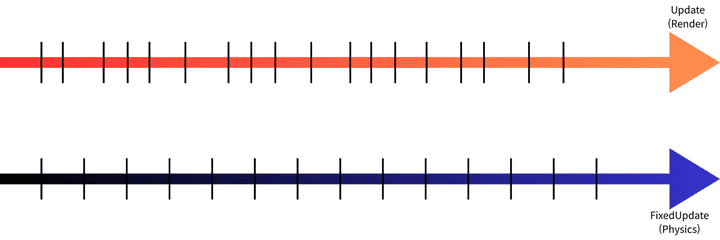 Update, FixedUpdate
These two loops don’t always run at the same timing. Physics positions are updated every FixedUpdate, but rendering happens on the Update loop. Let’s explore the Interpolation property.
Comparison
Seeing is believing. Let’s directly compare the three options. If we set each cube’s Interpolation differently and slow things down with TimeScale, what will they look like?
Can you notice the differences? Here’s what I observed:
- None : Noticeable stuttering and jitter during movement.
- Interpolate : Smooth, but appears to reach the ground slightly later than the other cubes.
- Extrapolate : Smooth, but appears to squish more when hitting the ground.
Why do these differences occur?
None
No correction is applied. The physics position from the most recent FixedUpdate is rendered as-is at the rendering time. When FixedUpdate and rendering timing don’t align, the object’s position changes discontinuously, causing jitter. In other words, the physics position itself is accurate, but because the rendering timing doesn’t match, the position appears to jump.
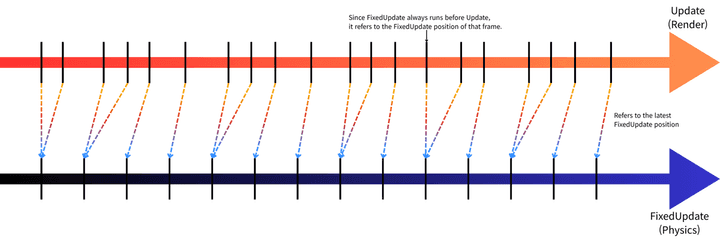 None - Uses the latest FixedUpdate position
Interpolate
Uses the positions from the previous two FixedUpdate results and interpolates between them.
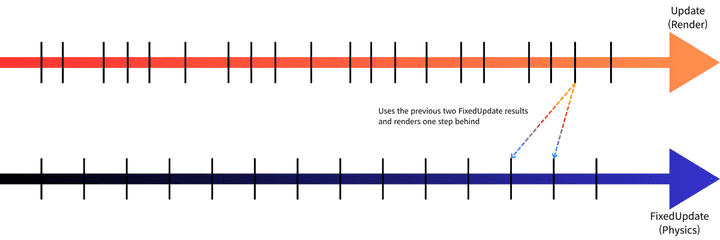 Uses the previous two FixedUpdate results and renders one step behind
If we call the two most recent FixedUpdate positions A and B, we calculate the ratio (α) of where the rendering time falls within the A-to-B interval, and interpolate the position between A and B for rendering. Even if FixedUpdate only runs 50 times per second, each frame renders a slightly different position, making the movement appear smooth. However, since it always interpolates based on two already-completed past positions, the rendered position is always one FixedUpdate step behind the actual physics position.
Now you can see why the Interpolate cube appeared to fall later in the video above.
Extrapolate
Predicts (extrapolates) the next position based on the current velocity. Just like how we predicted the 11 AM temperature using data up to 10 AM. Since the prediction goes beyond the known data range, when speed or direction changes abruptly, the prediction can miss, causing the object to overshoot past its actual position and then snap back.
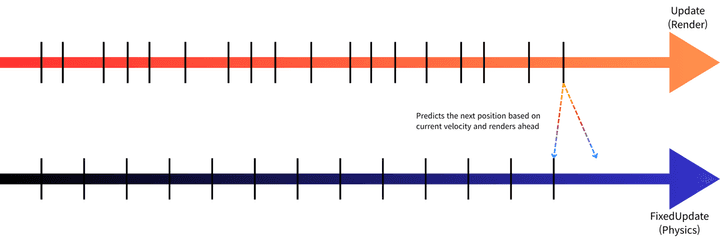 Predicts the next position based on current velocity and renders ahead
Now you can see why the Extrapolate cube appeared to squish more when it hit the ground. The renderer predicted the cube would keep falling, but it didn’t anticipate the sudden collision with the floor.
Summary
Let’s look at the video again. This time, let’s focus on the final results.
Physics Time of actual collision with the floor
Extrapolate Cube: 0.920sNone Cube: 0.920sInterpolate Cube: 0.920s
Render Time the visual reached the floor
Extrapolate Cube: 0.893sNone Cube: 0.904sInterpolate Cube: 0.914s
The key point here is that the actual physics collision occurred at the same time for all three cubes. The Interpolation setting does not affect the physics simulation itself. That’s right — the only difference is in rendering timing.
Here’s why the rendering arrival times differ:
Extrapolate: Predicts the future, so it appears ahead of the actual position. This is also why it penetrates the floor more.Interpolate: Interpolates between two past positions, so it renders behind the actual position.None: Uses theFixedUpdateposition directly, so it falls somewhere in between.
So when should we use each option?
| Option | Situation |
|---|---|
| None | When physics objects aren’t visible to the camera, or jitter isn’t noticeable |
| Interpolate | Player characters, camera-tracked objects — when smooth movement matters |
| Extrapolate | When even the slight delay of Interpolate is unacceptable. However, errors may occur during sharp direction changes |
In most cases, Interpolate is the way to go. If you’re worried about performance, don’t be. The core operation of Interpolate is linear interpolation (Lerp):
With the previous position A, the most recent position B, and the progress ratio α, it’s a simple O(1) operation — just a few additions and multiplications. It runs once per Rigidbody per rendering frame, which is negligible compared to the cost of the physics simulation itself. Unless you have a specific reason not to, it’s best to keep Interpolate as the default.